








Frequently Asked Questions

How do I reset my Maybank2u password?


Click here for Bahasa Malaysia.

If you know your Maybank2u password but want to update it, simply log into the MAE app and update it under Settings > Security > Change Password.

If you have forgotten your Maybank2u password, you can reset it on the MAE app by following the steps below.
This is only applicable to Individual/Sole Proprietor users, there are no changes for M2UBiz and M2E users.

To reset your Maybank2u password:

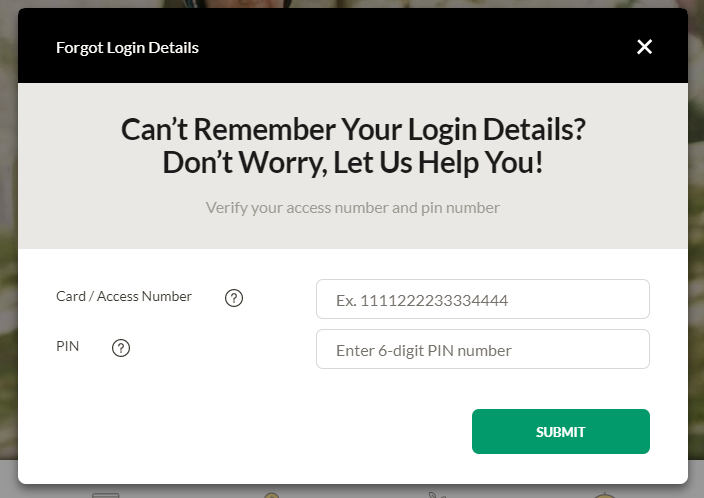
  1. Tap on ‘Forgot Password’ or ‘Forgot Login Details’ when you are prompted with the login screen.
  2. Select ‘Verify Using Secure2u’.
  3. Select the method you would like to verify your account. Please ensure that it is the same selection you used to register your Maybank2u account for the first time (debit card, credit card, MAE wallet number or access number).
  4. Key in your MAE app PIN (the 6-digit PIN number you use to unlock your MAE app).
  5. Verify your identity by scanning your NRIC/Passport and taking a self portrait photo with your camera.
  6. Your username will be displayed, please check and confirm it is correct before proceeding to the next step.
  7. Please key in your new password and authenticate it via Secure2u.
  8. Your password has been successfully reset! Please note that, as a security measure, you can only reset your password once every 24 hours.


If you have forgotten your MAE app PIN, haven’t registered for Secure2u, lost your Secure2u-linked device, or unable to proceed with any of the steps in Scenario 1, follow the steps below to create a temporary M2U PIN to reset your Maybank2u password:

Step 2A – Set a temporary M2U PIN

  1. Visit your nearest Maybank ATM or Maybank branch.
  2. Insert your card and enter for 6-digit ATM PIN.
  3. Choose ‘Maybank2u/Phone Banking/ATM SMS Alerts’.
  4. Choose ‘Set Temporary M2U PIN’.
  5. Set a 6-digit temporary M2U PIN.
  6. Within 48 hours, open the MAE app and follow ‘Step 2B’ below to reset your Maybank2u password using the temporary M2U PIN.

Note: If you do not have a card, you can obtain an access number and set a temporary M2U PIN by visiting your nearest Maybank branch and seek assistance from our branch staff.


Step 2B – Reset your Maybank2u password on the MAE app using a temporary M2U PIN

  1. Tap on ‘Forgot Password’ or ‘Forgot Login Details’ when you are prompted with the login screen.
  2. Select ‘Verify using temporary M2U PIN’.
  3. Select the method you would like to verify your account. Please ensure that it is the same selection you used to register your Maybank2u account for the first time (debit card, credit card, MAE wallet number or access number).
  4. Input your temporary M2U PIN.
  5. Your username will be displayed, please check and confirm it is correct before proceeding to the next step.
  6. Key in your new password and your password has been successfully reset! Please note that, as a security measure, you can only reset your password once every 24 hours.


Please note that your Maybank2u account will be blocked for 24 hours upon 3 failed verification attempts.


How do I reset my MAE app PIN?

  1. Go to ‘Settings’ on the MAE app.
  2. Tap ‘Security’.
  3. Enter your M2U login password.
  4. Select ‘Change App PIN’.
  5. Tap ‘Forgot PIN’.
  6. Select your verification method:
    • ‘Verify using MyKad/Passport’ - Scan your ID (MyKad/Passport) and take a self-portrait photo within the app to complete the security verification.
    • ‘Verify using temporary M2U PIN’ - Visit any Maybank ATM to create a temporary M2U PIN, then enter it in the MAE app within 48 hours to proceed with the security verification.
  7. Create a new MAE app PIN, approve it via Secure2u and you’re done.